Monday, April 9, 2012

Store personalized variables through custom interface in SharePoint 2010 visual web part.

In SharePoint 2010 visual web part, you can create custom properties. These variables will be displayed in the web part’s properties window.

If the custom property variable contains the attribute ‘Personalizable’, these values will be stored in a database. This will happen through the properties window. If you set a value to these variables through code, it will not store in the database. This section describes how to store the values to the database through a custom interface.

1. Create a visual web part; name it as ‘Personalizable’.

2. Open Personalizable.cs file. Add the following property.

 [WebBrowsable(false)]
[Personalizable(PersonalizationScope.User)]
public string Notes { get; set; }

The WebBrowsable attribute is set to false, because we don’t want this value to be displayed in the web part properties window. We are going to set this value through the custom interface.

3. Open ‘PersonalizableUserControl.ascx’ file. Add a text box and a button. Text box is to enter the value; the button is to store the value in the personolizable database. Name the text box as txtNotes and button as btnSave.

4. Open PersonalizableUserControl.ascx.cs file. Create a variable type Personalizable under

 public partial class PersonalizableUserControl : UserControl
 public Personalizable webPart { get; set; }

5. Double click on btnSave to create the button click event. Add the following code block under button click event. This will get the value from the text box and store in the personolizable database.

 protected void btnSave_Click(object sender, EventArgs e)
{
this.webPart.Notes = txtNotes.Text;
SPWeb web = SPContext.Current.Web;
SPFile file = web.GetFile(HttpContext.Current.Request.Url.ToString());
SPLimitedWebPartManager manager = file.GetLimitedWebPartManager(PersonalizationScope.User);
System.Web.UI.WebControls.WebParts.WebPart webPart = manager.WebParts[this.webPart.ID];
((Personalizable)webPart).Notes = this.webPart.Notes;
try
{
web.AllowUnsafeUpdates = true;
manager.SaveChanges(webPart);
}
finally
{
web.AllowUnsafeUpdates = false;
}
}

7. In the page load event, add the following code. This will display text in the text box, when the web part loads.

 protected void Page_Load(object sender, EventArgs e)
{
if (this.webPart.Notes!=null)
{
txtNotes.Text = this.webPart.Notes;
}
}
8. Add the following code in CreateChildControls() of Personalizable.cs file.
 protected override void CreateChildControls()
{
PersonalizableUserControl control = Page.LoadControl(_ascxPath) as PersonalizableUserControl;
if (control!=null)
{
control.webPart = this;
}
Controls.Add(control);
}

The coding part is done now deploy the solution and add the web part to a web part page.

Add some text to the text box and save it. When you go to this web part page next time you can see the entered value is displaying in the text box. This data taken from the personolizable database.

Cool!!!

Friday, March 30, 2012

How to set SharePoint 2010 web part chrome type to None programmatically

Sometimes you want to set the chrome type to none at the time of adding web parts to web part pages. Normally to set the chrome type to none, you will go to edit web parts and in the properties window you select the chrome type to none.


When you develop a custom web part in visual studio 2010, you can set this chrome type to none. So that the title will not appear at the time of web part adding.

To do this, open the .webpart file of relevant visual webpart, and set the following property under properties tag.

<property name="ChromeType" type="chrometype">None</property>

The complete .webpart file look like this.


 <?xml version="1.0" encoding="utf-8"?>

<webParts>

<webPart xmlns="http://schemas.microsoft.com/WebPart/v3">

<metaData>

<type name="Gadgets.Weather.Weather, $SharePoint.Project.AssemblyFullName$" />

<importErrorMessage>$Resources:core,ImportErrorMessage;</importErrorMessage>

</metaData>

<data>

<properties>

<property name="Title" type="string">Weather</property>

<property name="Description" type="string">My Visual WebPart</property>

<property name="ChromeType" type="chrometype">None</property>

</properties>

</data>

</webPart>

</webParts>

Wednesday, March 14, 2012

Create a News Web Part with multiple news sources

In this section I am describing how to create a custom News Web part in SharePoint t 2010. Creating an Rss Viewer webpart is easy; it is an out of the box web part. But in RSS Viewer webpart you can give only one RSS Feed URL, you can’t give multiple Rss Feed urls.

This document is about creating a webpart with multiple Rss Feed sources. I’m using Rss feeds from various news source. For Ex: the Rss feed url for CNN is http://rss.cnn.com/rss/edition.rss.
Rss file is a xml type document where you can find tags , , , etc… Inside you can find title, description, pubDate, etc…


Following are the steps to create News web part:

1. Create an Empty sharepoint project, name it as ‘News’. Don’t forget to select .Net frame work 3.5.

2. Create a Class call Item.cs inside the project ‘News’, where you can hold Rss feeds metadata.
 public class Item

{

public string Link { get; set; }

public string Title { get; set; }

public string Content { get; set; }

public DateTime PublishDate { get; set; }

public Item()

{

Link = "";

Title = "";

Content = "";

PublishDate = DateTime.Today;

}

}


3. Next create a Class call FeedParser.cs.
The rss feed url is a xml based document. You need to parse the xml to get the required data.
Inside the class I have created a method call ‘ParseRss’ , which takes rss url as a parameter. This method goes through the rss document and gets the required data.
 public virtual IList<Item> ParseRss(string url)

{

try

{

System.Net.HttpWebRequest webRequest = (System.Net.HttpWebRequest)System.Net.HttpWebRequest.Create(url);

webRequest.Proxy = WebProxy.GetDefaultProxy();

webRequest.Proxy.Credentials = CredentialCache.DefaultCredentials;

webRequest.Credentials = CredentialCache.DefaultCredentials;

using (System.Net.HttpWebResponse webResponse = (System.Net.HttpWebResponse)webRequest.GetResponse())

{

using (System.IO.StreamReader sr = new System.IO.StreamReader(webResponse.GetResponseStream()))

{

XDocument doc = XDocument.Load(new System.IO.StringReader(sr.ReadToEnd()));

// RSS/Channel/item

var entries = from item in doc.Root.Descendants().First(i => i.Name.LocalName == "channel").Elements().Where(i => i.Name.LocalName == "item")

select new Item

{

Content = item.Elements().First(i => i.Name.LocalName == "description").Value,

Link = item.Elements().First(i => i.Name.LocalName == "link").Value,

PublishDate = ParseDate(item.Elements().First(i => i.Name.LocalName == "pubDate").Value),

Title = item.Elements().First(i => i.Name.LocalName == "title").Value

};

return entries.ToList();

}

}

}

catch

{

return new List<Item>();

}

}


The following lines of codes added to get the default proxy and the credentials.
 webRequest.Proxy = WebProxy.GetDefaultProxy();

webRequest.Proxy.Credentials = CredentialCache.DefaultCredentials;

webRequest.Credentials = CredentialCache.DefaultCredentials;


Otherwise it throws ‘The remote server returned an error: (407) Proxy Authentication Required.’ Exception.
The method returns an ‘Item’ object, where you are holding rss metadata.

4. Now create a visual webpart, name it as NewsWebpart.
As I mentioned earlier, I’m going to enable multiple Rss Feed sources, the user can select whatever the news source they required. The news source is going to be a custom property; it will appear in the Edit web part properties box.

To add the custom property, open the NewsWebpart.cs file. Add the following property in side class declaration.


 [ToolboxItemAttribute(false)]

public class NewsWebpart : WebPart

{

[Personalizable(), WebBrowsable, Category("News Feed"), DefaultValue(NewsSources.AdaDerana)]

public NewsSources NewsSource { get; set; }


NewsSources is an enum type of news sources, it will display as a drop down in edit webpart properties window.

 public enum NewsSources

{

BBC,

CNN,

AdaDerana,

LankaNewsPapers

}


Modify the CreateChildControls method as follows.
 protected override void CreateChildControls()

{

//Control control = Page.LoadControl(_ascxPath);

//Controls.Add(control);

NewsWebpartUserControl control = Page.LoadControl(_ascxPath) as NewsWebpartUserControl;

if (control!=null)

{

control.Webpart = this;

}

Controls.Add(control);

}


5. Now open ‘NewsWebpartUserControl.ascx’ file in design mode, add an Asp Gridview control to display the news items.
 <asp:GridView ID="grdFeeds" runat="server" AutoGenerateColumns="False" GridLines="Vertical"

AllowPaging="True" Width="250px"

onpageindexchanging="grdFeeds_PageIndexChanging">

<AlternatingRowStyle BackColor="#EEEEEE" />

<Columns>

<asp:HyperLinkField HeaderText="News" HeaderStyle-HorizontalAlign="Left" HeaderStyle-Font-Bold="true" HeaderStyle-Font-Size="Medium" HeaderStyle-Font-Names="Calibri"

DataNavigateUrlFields="Link" DataNavigateUrlFormatString="{0}"

DataTextField="Title" Target="_blank" HeaderStyle-ForeColor="Gray">

<HeaderStyle Height="0px"></HeaderStyle>

</asp:HyperLinkField>

</Columns>

<RowStyle Font-Bold="True" Font-Names="Calibri" Height="45px"

BackColor="#DDDDDD" />

</asp:GridView>


I have set the pagination, so that you need to add PageIndexChanging event for the grid.

6. Next open ‘NewsWebpartUserControl.ascx.cs’ file. Create a variable of ‘NewsWebpart type as follows.
 public NewsWebpart Webpart { get; set; }

At the OnPreRender method you can get the values entered in edit webpart properties window and load the grid according to that.

 protected override void OnPreRender(EventArgs e)

{

base.OnPreRender(e);

FeedParser parser = new FeedParser();

System.Collections.Generic.IList<Item> items=null;

NewsSources news = this.Webpart.NewsSource;

switch (news)

{

case NewsSources.BBC:

items = parser.ParseRss("http://feeds.bbci.co.uk/news/world/asia/rss.xml");

break;

case NewsSources.AdaDerana:

items = parser.ParseRss("http://www.adaderana.lk/rss.php");

break;

case NewsSources.CNN:

items = parser.ParseRss("http://rss.cnn.com/rss/edition.rss");

break;

case NewsSources.LankaNewsPapers:

items = parser.ParseRss("http://www.lankanewspapers.com/news/rss.xml");

break;

default:

break;

}

grdFeeds.DataSource = items;

grdFeeds.DataBind();

}


This is the PageIndexChanging event.
 protected void grdFeeds_PageIndexChanging(object sender, GridViewPageEventArgs e)

{

grdFeeds.PageIndex = e.NewPageIndex;

grdFeeds.DataBind();

}


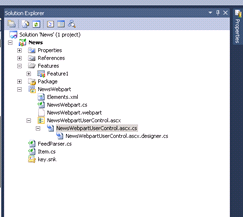
7. You are done with development part. The solution explorer as follows:


You can deploy the solution. Once you deployed create a page call News in SharePoint site, go to edit page mode, in the Insert tab of the ribbon select Web Part. Find the NewsWebpart in Custom Category and click Add.

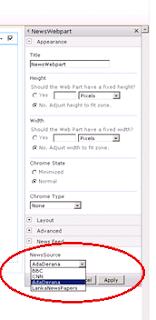
At the right side of the webpart you will find the Edit Web part link, select it. This will open the web part properties window.


Here you can find a category News Feed, there you have a dropdown to select the news source. Select a news source and click Apply, the news webpart is loading according to the selected newssource item.
Finally you will get the News webpart as this:


Following is the complete source code:

1. Item.cs

 using System;

using System.Collections.Generic;

using System.Linq;

using System.Text;

namespace News

{

public class Item

{

public string Link { get; set; }

public string Title { get; set; }

public string Content { get; set; }

public DateTime PublishDate { get; set; }

public Item()

{

Link = "";

Title = "";

Content = "";

PublishDate = DateTime.Today;

}

}

}


2. FeedParser.cs
 using System;

using System.Collections.Generic;

using System.Linq;

using System.Text;

using System.Xml.Linq;

using System.Net;

namespace News

{

public class FeedParser

{

public virtual IList<Item> ParseRss(string url)

{

try

{

System.Net.HttpWebRequest webRequest = (System.Net.HttpWebRequest)System.Net.HttpWebRequest.Create(url);

webRequest.Proxy = WebProxy.GetDefaultProxy();

webRequest.Proxy.Credentials = CredentialCache.DefaultCredentials;

webRequest.Credentials = CredentialCache.DefaultCredentials;

using (System.Net.HttpWebResponse webResponse = (System.Net.HttpWebResponse)webRequest.GetResponse())

{

using (System.IO.StreamReader sr = new System.IO.StreamReader(webResponse.GetResponseStream()))

{

XDocument doc = XDocument.Load(new System.IO.StringReader(sr.ReadToEnd()));

// RSS/Channel/item

var entries = from item in doc.Root.Descendants().First(i => i.Name.LocalName == "channel").Elements().Where(i => i.Name.LocalName == "item")

select new Item

{

Content = item.Elements().First(i => i.Name.LocalName == "description").Value,

Link = item.Elements().First(i => i.Name.LocalName == "link").Value,

PublishDate = ParseDate(item.Elements().First(i => i.Name.LocalName == "pubDate").Value),

Title = item.Elements().First(i => i.Name.LocalName == "title").Value

};

return entries.ToList();

}

}

}

catch

{

return new List<Item>();

}

}

private DateTime ParseDate(string date)

{

DateTime result;

if (DateTime.TryParse(date, out result))

return result;

else

return DateTime.MinValue;

}

}

}


3. NewsWebpart.cs


 using System;

using System.ComponentModel;

using System.Web;

using System.Web.UI;

using System.Web.UI.WebControls;

using System.Web.UI.WebControls.WebParts;

using Microsoft.SharePoint;

using Microsoft.SharePoint.WebControls;

namespace News.NewsWebpart

{

[ToolboxItemAttribute(false)]

public class NewsWebpart : WebPart

{

// Visual Studio might automatically update this path when you change the Visual Web Part project item.

private const string _ascxPath = @"~/_CONTROLTEMPLATES/News/NewsWebpart/NewsWebpartUserControl.ascx";

[Personalizable(), WebBrowsable, Category("News Feed"), DefaultValue(NewsSources.AdaDerana)]

public NewsSources NewsSource { get; set; }

protected override void CreateChildControls()

{

//Control control = Page.LoadControl(_ascxPath);

//Controls.Add(control);

NewsWebpartUserControl control = Page.LoadControl(_ascxPath) as NewsWebpartUserControl;

if (control!=null)

{

control.Webpart = this;

}

Controls.Add(control);

}

}

public enum NewsSources

{

BBC,

CNN,

AdaDerana,

LankaNewsPapers

}

}


4. NewsWebpartUserControl.ascx
 <%@ Assembly Name="$SharePoint.Project.AssemblyFullName$" %>

<%@ Assembly Name="Microsoft.Web.CommandUI, Version=14.0.0.0, Culture=neutral, PublicKeyToken=71e9bce111e9429c" %>

<%@ Register Tagprefix="SharePoint" Namespace="Microsoft.SharePoint.WebControls" Assembly="Microsoft.SharePoint, Version=14.0.0.0, Culture=neutral, PublicKeyToken=71e9bce111e9429c" %>

<%@ Register Tagprefix="Utilities" Namespace="Microsoft.SharePoint.Utilities" Assembly="Microsoft.SharePoint, Version=14.0.0.0, Culture=neutral, PublicKeyToken=71e9bce111e9429c" %>

<%@ Register Tagprefix="asp" Namespace="System.Web.UI" Assembly="System.Web.Extensions, Version=3.5.0.0, Culture=neutral, PublicKeyToken=31bf3856ad364e35" %>

<%@ Import Namespace="Microsoft.SharePoint" %>

<%@ Register Tagprefix="WebPartPages" Namespace="Microsoft.SharePoint.WebPartPages" Assembly="Microsoft.SharePoint, Version=14.0.0.0, Culture=neutral, PublicKeyToken=71e9bce111e9429c" %>

<%@ Control Language="C#" AutoEventWireup="true" CodeBehind="NewsWebpartUserControl.ascx.cs" Inherits="News.NewsWebpart.NewsWebpartUserControl" %>

<div>

<asp:GridView ID="grdFeeds" runat="server" AutoGenerateColumns="False" GridLines="Vertical"

AllowPaging="True" Width="250px"

onpageindexchanging="grdFeeds_PageIndexChanging">

<AlternatingRowStyle BackColor="#EEEEEE" />

<Columns>

<asp:HyperLinkField HeaderText="News" HeaderStyle-HorizontalAlign="Left" HeaderStyle-Font-Bold="true" HeaderStyle-Font-Size="Medium" HeaderStyle-Font-Names="Calibri"

DataNavigateUrlFields="Link" DataNavigateUrlFormatString="{0}"

DataTextField="Title" Target="_blank" HeaderStyle-ForeColor="Gray">

<HeaderStyle Height="0px"></HeaderStyle>

</asp:HyperLinkField>

</Columns>

<RowStyle Font-Bold="True" Font-Names="Calibri" Height="45px"

BackColor="#DDDDDD" />

</asp:GridView>

</div>


5. NewsWebpartUserControl.ascx.cs


 using System;

using System.Web.UI;

using System.Web.UI.WebControls;

using System.Web.UI.WebControls.WebParts;

namespace News.NewsWebpart

{

public partial class NewsWebpartUserControl : UserControl

{

public NewsWebpart Webpart { get; set; }

protected void Page_Load(object sender, EventArgs e)

{

}

protected void grdFeeds_PageIndexChanging(object sender, GridViewPageEventArgs e)

{

grdFeeds.PageIndex = e.NewPageIndex;

grdFeeds.DataBind();

}

protected override void OnPreRender(EventArgs e)

{

base.OnPreRender(e);

FeedParser parser = new FeedParser();

System.Collections.Generic.IList<Item> items=null;

NewsSources news = this.Webpart.NewsSource;

switch (news)

{

case NewsSources.BBC:

items = parser.ParseRss("http://feeds.bbci.co.uk/news/world/asia/rss.xml");

break;

case NewsSources.AdaDerana:

items = parser.ParseRss("http://www.adaderana.lk/rss.php");

break;

case NewsSources.CNN:

items = parser.ParseRss("http://rss.cnn.com/rss/edition.rss");

break;

case NewsSources.LankaNewsPapers:

items = parser.ParseRss("http://www.lankanewspapers.com/news/rss.xml");

break;

default:

break;

}

grdFeeds.DataSource = items;

grdFeeds.DataBind();

//lblHeading.Text = news.ToString() + " News";

}

}

}

Monday, March 12, 2012

MCTS: Microsoft SharePoint 2010, Application Development

I completed MCTS: Sharepoint 2010, Application Development Exam - 70-573 on 11th March 2012